How to Use Digital Coloring Pages in Procreate. New to coloring in Procreate? This video tutorial shows several easy ways to color digital coloring pages with pro tips and tricks.
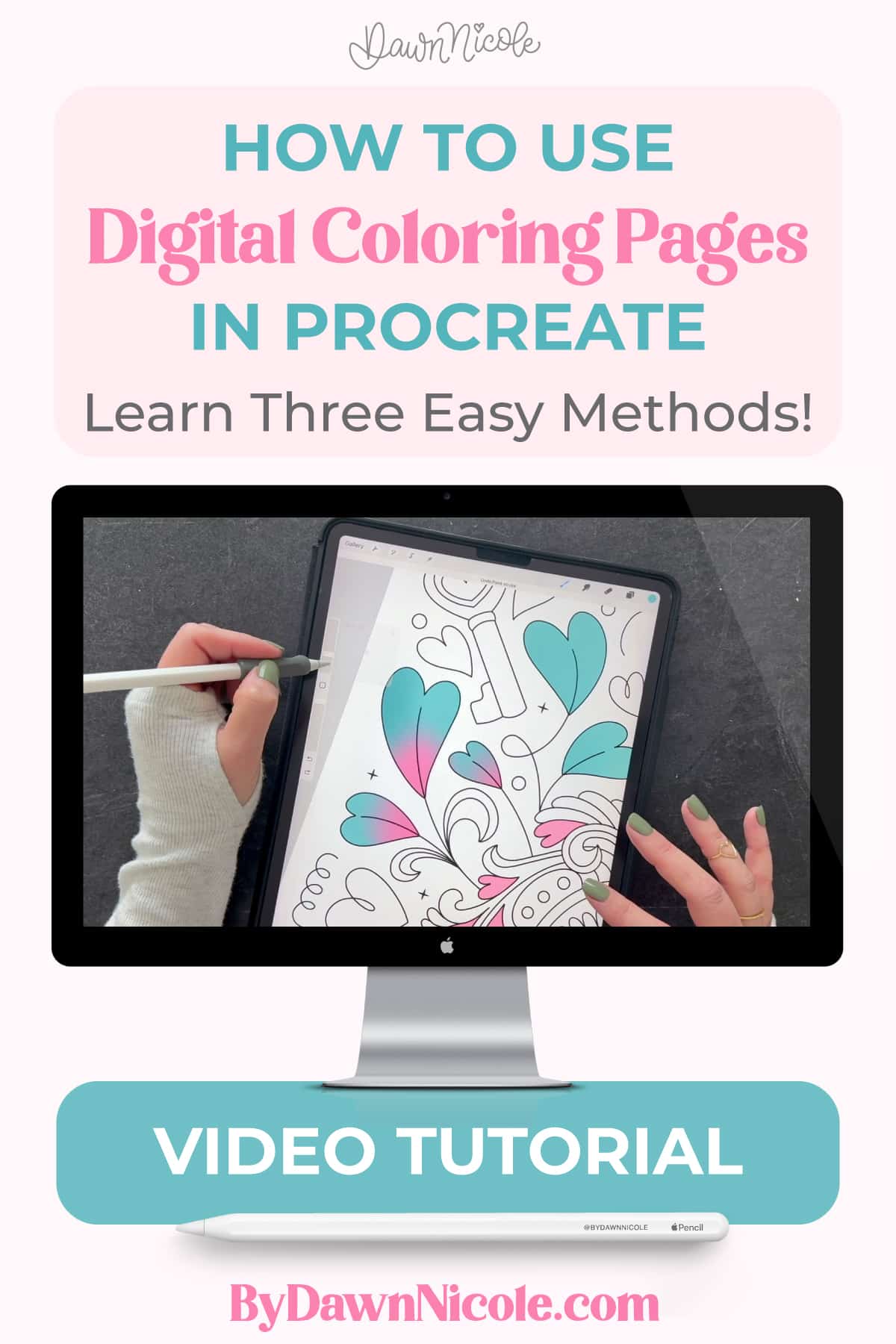
How to Use Digital Coloring Pages in Procreate
Coloring in Procreate is one of the easiest and most relaxing ways to start creating digital art, even if you’re brand new to the app. In this step-by-step tutorial, I’ll show you several simple ways to color digital coloring pages, plus a few favorite tips and tricks that make the process faster and more fun. You can follow along with my video lesson or use the written steps below, whether you’re practicing for the first time or leveling up your coloring workflow.
Why Color Digital Coloring Pages in Procreate
- Beginner-friendly creative practice
- No mess, unlimited undo, endless color options
- Great for learning layers and selection tools
- Relaxing way to build confidence with Procreate
What You Need Before You Start
You only need Procreate, an iPad, and a stylus to begin, plus a digital coloring page file. Most PNG, JPG, and layered files will work great for coloring projects. I’m using a coloring page from my Secret Garden Coloring Book in the video lesson.
Watch the video tutorial
This is one of my most popular videos on YouTube, so I have finally written a blog post to accompany it. This quick video walkthrough demonstrates each coloring method so you can follow along visually. It’s perfect if you prefer learning by watching and tapping through the process in real time.
Here’s a summary of the video lesson!
How to Import a Digital Coloring Page into Procreate
Start by opening or importing your coloring page into a new canvas to keep your lines crisp. Take a moment to check your layer setup before coloring to avoid extra cleanup later.
Coloring Methods
- Drag and Drop Color Fill. Use ColorDrop to quickly fill closed shapes by dragging color from the palette into an area. Adjust the threshold slider to control how tightly the fill hugs your line art.
- Coloring with Selection Tool: The Selection tool lets you define an area first, then fill it cleanly without spillover. This method is especially helpful for detailed sections or spots with tiny gaps.
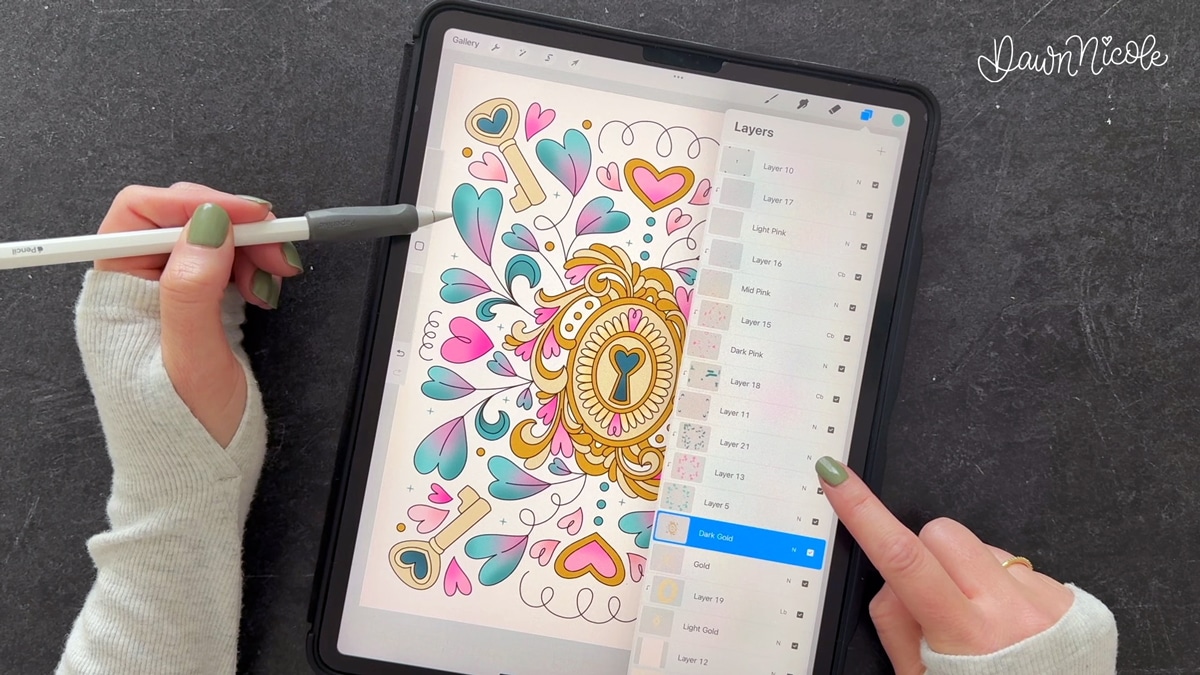
- Using Reference Layers (Coloring on Layers Under Line Art): Place your color layers beneath your reference (line art) layer so outlines stay sharp and separate. This gives you more flexibility to edit, shade, and experiment without affecting the lines.
Pro Tips and Tricks for Cleaner Coloring
Simple features such as reference layers, clipping masks, and alpha lock can dramatically speed up your workflow. These tools help you add shading, texture, and variation while keeping edges neat.
Common Beginner Mistakes to Avoid
Many coloring issues arise from small gaps in line art or from working on the wrong layer. A quick layer check and threshold adjustment can prevent most frustration.
Practice with Ready-Made Pages
Using ready-made coloring pages helps you skip setup and jump straight into practicing techniques.
- Check out some of my FREE Coloring Pages.
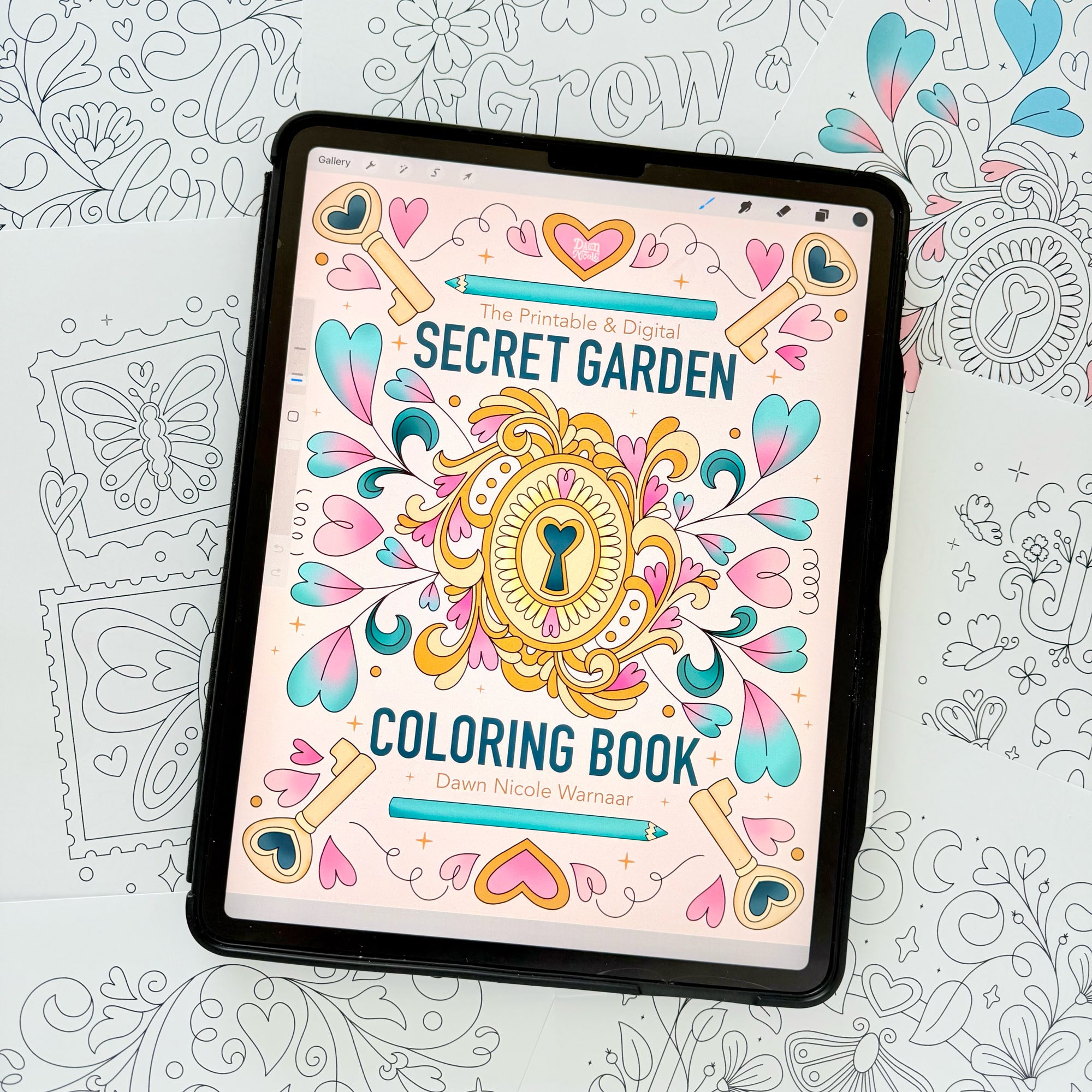
- My Secret Garden Coloring Book is designed for Printing and Procreate and makes it easy to start coloring right away.
- Flip through the Printable & Digital Secret Garden Coloring Book below!
Get this Coloring Book and start coloring today!
Final Thoughts
There’s no single “correct” coloring method, so try each approach and see what feels best for your style. The more you experiment, the faster and more confident your Procreate coloring will become. I use a combo of all these methods for both coloring and creating digital art from scratch.
Happy coloring and creating!